|
Field Name |
Description |
|
Org Name |
Required. Free-text field and has no default value. |
|
County |
Required for city and county health departments. Drop-down pre-populated with WI counties. |
|
Address 1 |
Required. Free-text field and has no default value. |
|
Address 2 |
Free-text field and has no default value. |
|
PO Box |
Free-text field and has no default value. |
|
City |
Required. Free-text field and has no default value. |
|
State |
Required. Drop-down field pre-populated with the state abbreviations. |
|
ZIP |
Required. Free-text fields and have no default values. |
|
Contact |
Required. Free-text field and has no default value. |
|
|
Required. Free-text field and has no default value. |
|
Phone Number |
Required. Free-text fields and have no default value. |
|
Extension |
Free-text fields and have no default value. |
|
VFC Only |
• This indicator determines whether this is a VFC Only organization. • When the VFC Only radio button is Yes, VFC inventory displays in the Manage Orders > Create Order page. |
|
Public Org |
• This indicator determines whether the organization is public. • This indicator influences which vaccines the organization can order. • When City and/or County are set to Yes, Public Org must also be set to Yes. |
|
County Org |
• This indicator is commonly used by Local Health Departments to run jurisdictional reporting on their client cohort based on county. • If the County Org radio button is Yes, the County field on the Edit Organization page becomes required and Public Org must be set to Yes. Impacted Reports • Ad hoc List • Ad hoc Count • Assessment Report • Benchmark Report • Casa Extract • Organizational Extract • Reminder Recall
|
|
City Org |
• This indicator is commonly used by Local Health Departments to run jurisdictional reporting on their client cohort based on city. • If City radio button is Yes, the County field on the Edit Organization page also becomes a required field and Public Org must be set to Yes. Impacted Reports • Ad hoc List • Ad hoc Count • Assessment Report • Benchmark Report • Blood Lead Report • Casa Extract • Reminder Recall
|
|
High Risk Indicator |
Indicates that an organization's cohort are at high risk and can affect what vaccines are recommended in the schedule. |
|
Follow MA br |
Follow MA br (Medicaid business rules) applies to organizations that may be submitting less accurate data and affects how it is processed in data exchange. Follow MA br also influences the comparison of incoming immunizations to existing immunizations. For example, if two immunizations are within x number of days of each other, they will be considered duplicates. |
|
Create Clients without Imms |
If Create Clients without Imms radion button is Yes, data exchange will allow the creation of a client without any associated immunizations. |
|
Deduct inventory via HL7 Messages |
If Deduct inventory via HL7 Messages is Yes, an organization will be able to utilize data exchange to deduct vaccines from WIR inventory. |
| School Immunizations |
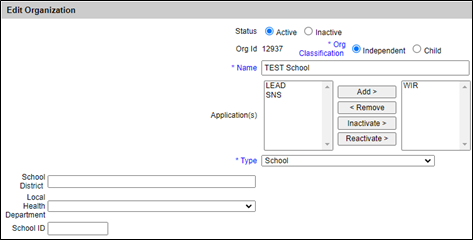
• If School Immunization radio button is Yes, the system forces the Minimum Requirements tracking schedule to be utilized for an organization when evaluating client records. Note: If Association Type is 'School,' then the School Immunizations radio button will automatically be set to Yes and cannot be switched to No without changing the Association Type. This radio button can be enabled even if the organization does not have an Association Type of 'School.' • If School Immunizations radio button is Yes, School District, Local Health Department, and School ID fields display on Edit Organization page. • Requires the organization to adhere to FERPA consent. • Impacts Organizational Extract.
|
| Return Clients without Imms |
If Return Clients without Imms radio button is Yes, then clients without immunizations will display in reporting. Impacted Reports • Ad hoc List • Ad hoc Count • Assessment Report • Benchmark Report • Blood Lead Report • Casa Extract • Reminder Recall |
| Preserve Clients without Imms |
Associated with a script that purges clients who have no immunizations. If Preserve Clients without Imms radio button is Yes, then a client without immunizations will not be purged in the script process. |
| School Administers Imms | No longer used. |
| Non-School Orgs can submit School Imms |
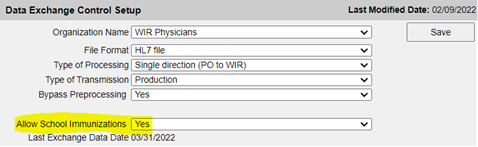
If Non-School Orgs can submit School Imms radio button is Yes, an organization that is not a School is allowed to record School immunizations in addition to Non-School immunizations. In order to actually record immunizations as "School" immunizations, the 'Allow School Immunizations' flag on the 'manage data exchange page' also needs to be set to Yes in conjunction with with 'Non-School Orgs can submit School Imms' radio button being set to Yes.
When the 'Allow School Immunizations' flag is set to Yes, FERPA CONSENT, GRADYEAR, and ENROLLDATE fields are expected for Flat File. |
| Master Chart # - P/C |
Applicable when relationship type is Parent. When Master Chart # - P/C radio button is Yes, the client chart number will be recorded under the Parent and Child Organizations For example, a new client is added for a Parent Organization with chart number 1234. If the radio button is set to Yes, the client's chart number of 1234 will also be applied to all the Parent's Child Organizations. |
| Master Chart # - V/C |
Applicable when relationship type is Vendor. When Master Chart # - V/C radio button is Yes, the client chart number will be recorded under the Vendor and Child Organizations For example, a new client is added for a Vendor Organization with chart number 4321. If the radio button is set to Yes, the client's chart number of 4321 will also be applied to all the Vendor's Child Organizations. |
| HL7 v2.5.1 r1.5 New Structure |
If HL7 v2.5.1 r1.5 New Structure radio button is Yes, an organization is expected to utilize the new HL7 formatting when submitting data exchange messages. The new formatting only applies to HL7 v2.5.1 r1.5. |
| Authorized Submitter |
If Authorized Submitter radio button is Yes, an organization gets classified as an Authorized Submitter. An Authorized Submitter is allowed to submit data exchange messages on behalf of other organizations. Setup of these organizations are configured on the Manage Authorized Submitter page. |
|
|
Clicking on Save will validate the information entered on the screen. A message will appear at the top indicating the status, such as if the user was saved or if there are missing required fields. |
|
|
Clicking on Cancel will discard any changes made on the screen. A confirmation message box will appear asking if you want to continue. Pressing OK on the message box will take you back the Home page; Cancel will keep you on the screen without discarding changes. |